
You'll need Org Admin permissions to invite users to your account.
To add a user use the steps below:
-
Click on the Users button on the left of your screen. It is located underneath Generate Report

- These are your User Roles. Here you can see users already added to your School Account.

- Click on the Invite User button and complete the details to invite the user.
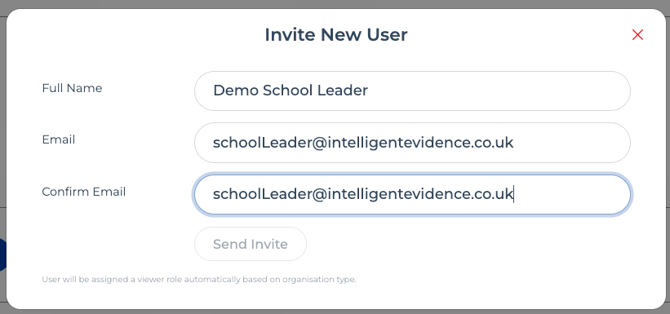
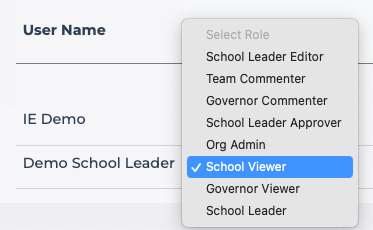
- Once added, you can change a user's role anytime from the dropdown, setting the access level that fits their responsibilities.
- The new user gets an email invite to confirm and set up their account. Once done, they can log in and start collaborating straight away.
Access Levels
The table below shows the access levels available in the system.
| Access Type | Create Evidence | Edit Evidence | Comment on Evidence | Approve Evidence | Peer Review Evidence | Manage Users |
| Org Admin | Yes | Yes | Yes | Yes | Yes | Yes |
| School Viewer | ||||||
| School Leader | Yes | Yes | ||||
| School Leader Editor | Yes | Yes | Yes | |||
| School Leader Approver | Yes | Yes | Yes | Yes | Yes | |
| Team Commenter | Yes | |||||
| Governor Viewer | ||||||
| Governor Commenter | Yes |
If you're having trouble with your permissions, see Why can't I access a feature?