The Documents page shows all the files you’ve uploaded and how they are being used. You can rescan the same document against different descriptors (for example, “Expected” first, then “Strong”), which is particularly helpful for documents such as IDSRs that cover multiple inspection areas.
Overview
The information panel at the top of the page highlights key details about your evidence, including how many pieces you have and the number of grade descriptors they cover.
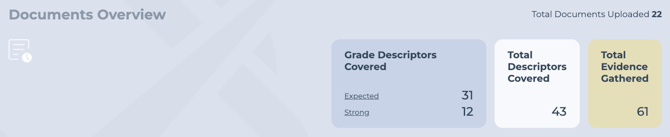
Beneath this, you’ll see all documents with approved evidence. Use the filters at the top to focus on documents linked to specific categories or to evidence at a particular strength.
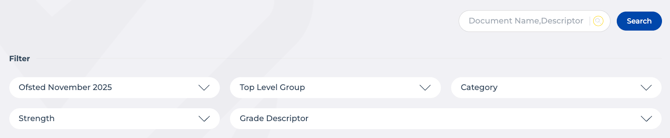
You can also use the search box to quickly find a specific document or grade descriptor. This is particularly useful if you have a large number of files, or if you want to locate evidence for a specific theme such as SEND or bullying.
Document Details
Each document is displayed in the list with the number of grade descriptors it covers.

Use the arrow to expand the document and see all of the evidence items linked to the document.
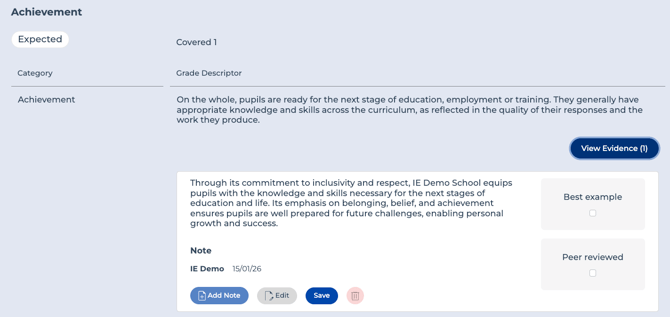
Here you can edit the evidence, add notes, and mark items as Best Example or Peer Reviewed, just as you can in the Evidence Base.
Rescan Document
To search a document again for evidence, use Re-scan document. This is particularly helpful if you are using the “Spotlight” approach and want to target specific evidence strengths or categories.
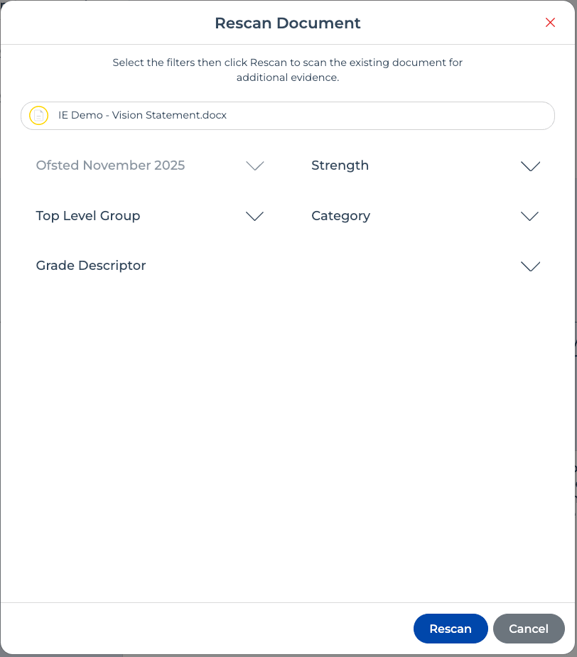
You can choose to rescan against the same category but focus on a different strength. For example, if you previously focused on “Expected” evidence and now want to identify “Strong” evidence, you can do that here.
You can also select a different category to search against.
ℹ️ Any new evidence found during the rescan will appear in the Upload & Review area for checking.
Go to Upload & Review to review and approve any new evidence from the rescan.
Delete Document
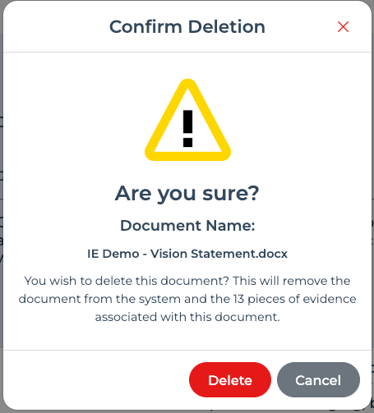
❗Warning: Deleting a document permanently removes the file and all associated evidence, including items already approved and those still awaiting approval in Upload & Review.
To delete a document, select it and click Delete Document. Check you've chosen the correct file, then confirm by clicking Yes on the warning message.