
The School Evidence Dashboard gives you a visual summary of your school's evidence position at a glance. It brings together your key evidence metrics and category grades in one place, so you can quickly understand where your school stands and identify any areas that need attention - without needing to navigate into individual categories or evidence items.
Accessing the Dashboard
To access the School Evidence Dashboard, click Dashboard in the left-hand sidebar. The dashboard will load automatically for your school.
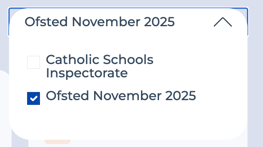
If your school has more than one framework enabled, a framework selector will appear at the top of the page. Select the framework you want to view data for before reviewing the dashboard.
The KPI Bar

At the top of the dashboard you will see four key indicators:
-
Documents Uploaded - The total number of documents that have been uploaded to your school.
-
Total Evidence Items - The total number of approved evidence items across all categories.
-
Grade Descriptors Covered - The percentage of grade descriptors that have been evidenced. This figure only includes categories that are applicable to your school type.
-
Evidence Ready to Approve - The total number of evidence items currently waiting for approval in the Upload & Review area.
School Overview Table
Below the KPI bar, the School Overview table shows your current evidence grade for each top level category. Each category is displayed as a colour-coded circle with an icon, so the dashboard can be used by all users regardless of colour vision.

The grades will adjust automatically according to the framework selected. As an example, for Ofsted 2025, the grades are shown below.
| Grade | Meaning |
|---|---|
| Needs Attention | One or more Expected grade descriptors are not yet evidenced |
| Expected | All Expected grade descriptors are evidenced |
| Strong | All Expected and Strong grade descriptors are evidenced |
| Not Applicable | This category does not apply to your school type |
Hovering on a Category
Hovering over any category grade opens a summary card showing:
- Your current grade for that category
- Your next grade
- How many grade descriptors you have evidenced toward that next grade
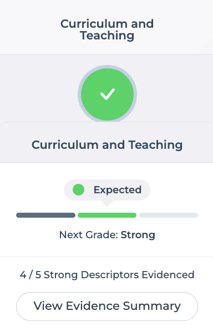
From this card, you can click through to the Evidence Summary for that category to see a full breakdown.
Evidence Status by Category Chart
Below the overview table, a bar chart displays the evidence status broken down by category. For each category, two bars are shown:
- Evidence Approved (blue) — the number of approved evidence items. Click this bar to go to the Evidence Base for that category.
- Evidence Ready for Review (yellow) — the number of items currently pending approval. Click this bar to go to the Review section, where you can approve or reject them.
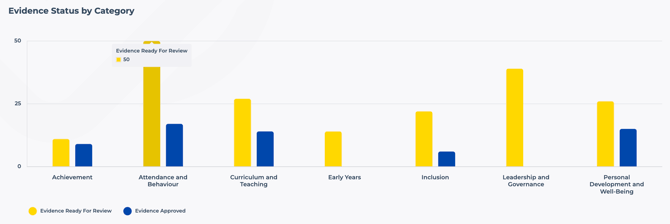
This chart is for reference only and cannot be sorted or filtered.
Switching Schools (MAT and LA Users)
If you are a MAT or LA user, a school selector dropdown will appear in the top right of the dashboard. Use this to switch between schools within your trust without returning to the MAT overview.
Evidence Summary
Clicking on the Evidence Summary on the evidence grading will take you through to the evidence summary page.
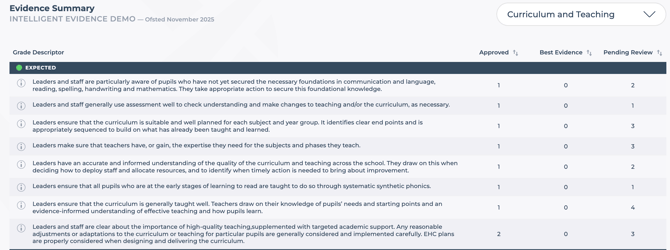
The Evidence Summary gives you a detailed breakdown of the evidence gathered for a specific category within a school. It shows you exactly which grade descriptors have been evidenced, how many items are approved or pending, and where the gaps are - so you can understand what is needed to move to the next grade.
Filters
At the top of the Evidence Summary page, filters are shown for the selected school and top level category. If the selected top level category contains more than one sub-category, additional filters will be displayed so you can view a specific sub-category if needed.
MAT and LA users can use these filters to switch to a different school or category without leaving the page. School-level users will see only their own school's data.
Reading the Evidence Summary
The evidence is organised into sections by strength level — for example Expected or Strong. Within each section, each grade descriptor is listed as a row showing:
- Grade descriptor - a shortened version of the descriptor text. Click or hover on the info icon to expand the full descriptor.
- Evidence Approved - the number of approved evidence items linked to this descriptor.
- Best Evidence - the number of approved items marked as "Best Evidence".
- Evidence Pending Review - the number of items currently awaiting approval.
Any count showing 0 is highlighted in red with an accessible indicator, so gaps are easy to spot at a glance.
Within each strength section, you can sort the rows by clicking any column header. Click once to sort ascending, click again to sort descending.
From here you can quickly identify areas needing action.
Next
You’re now up and running with Intelligent Evidence. From self-evaluation to inspection day, you’re building a system that works with you, not against you.
Use our How-To Guides to learn how to Invite Your Staff and SLT to Collaborate and Generate an Evidence Report for Ofsted, governors or MAT/LA partners.